
Area Selection
Select any screen area and preview it live
PinLens lets you drag over any part of your screen and keep it visible in a dedicated live preview window. It is built for UI alignment, pixel checks, detail demos, and collaboration.
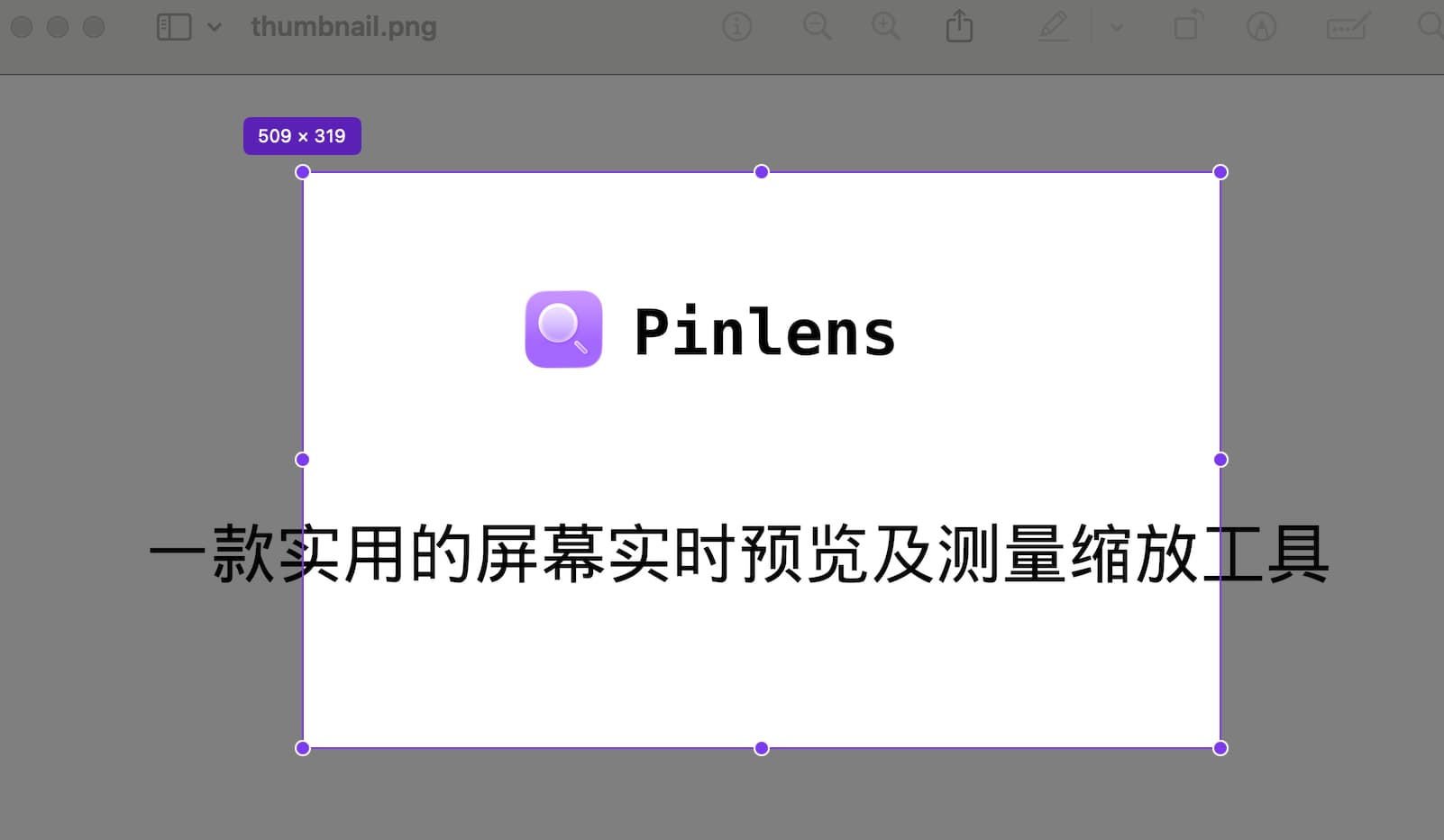
Live selection
Drag to create a region, then resize it from the corners and edges
8-way
Corner and edge handles
Live
Screen content preview
ESC
Quickly exit selection mode
Designed for precise selection
Drag any region
Start from any point on the screen to capture windows, canvases, webpages, app interfaces, or small UI details.
8-direction resizing
Corner and edge handles make it easy to fit the selection around buttons, icons, spacing, and design details.
Live preview window
After confirming a region, PinLens opens a preview window and keeps the selected screen content in sync.
Move and refine
Reposition the selection after creating it, so you can adjust the capture area without starting over.
From selection to preview in three steps
1
Launch PinLens from the menu bar or with the keyboard shortcut.
2
Drag to create a region and refine it with the resize handles.
3
Confirm the selection, then use zoom, rulers, and grids in the preview window.
PinLens macOS 15.0+